- Published on
How to Use ResearchDock’s Built-In Reference Manager
- Authors

- Name
- ResearchDock Team
Managing papers across email, Slack, and random folders is painful, especially when you’re working in a team. ResearchDock’s project-specific reference manager gives each project its own shared library of papers, comments, and reading lists.
In this short tutorial, we’ll walk through how to:
- Find the reference manager inside a project
- Discover and save papers (suggestions, search, uploads)
- Comment and reply on papers as a team
- Flag papers “To Read”
You’ll also see spots where you can drop in screenshots and videos.
1. Where to Find the Reference Manager
Each project has its own reference space, so your PhD project, grant, or supervision group all have separate libraries.
Steps
Open a project in ResearchDock.
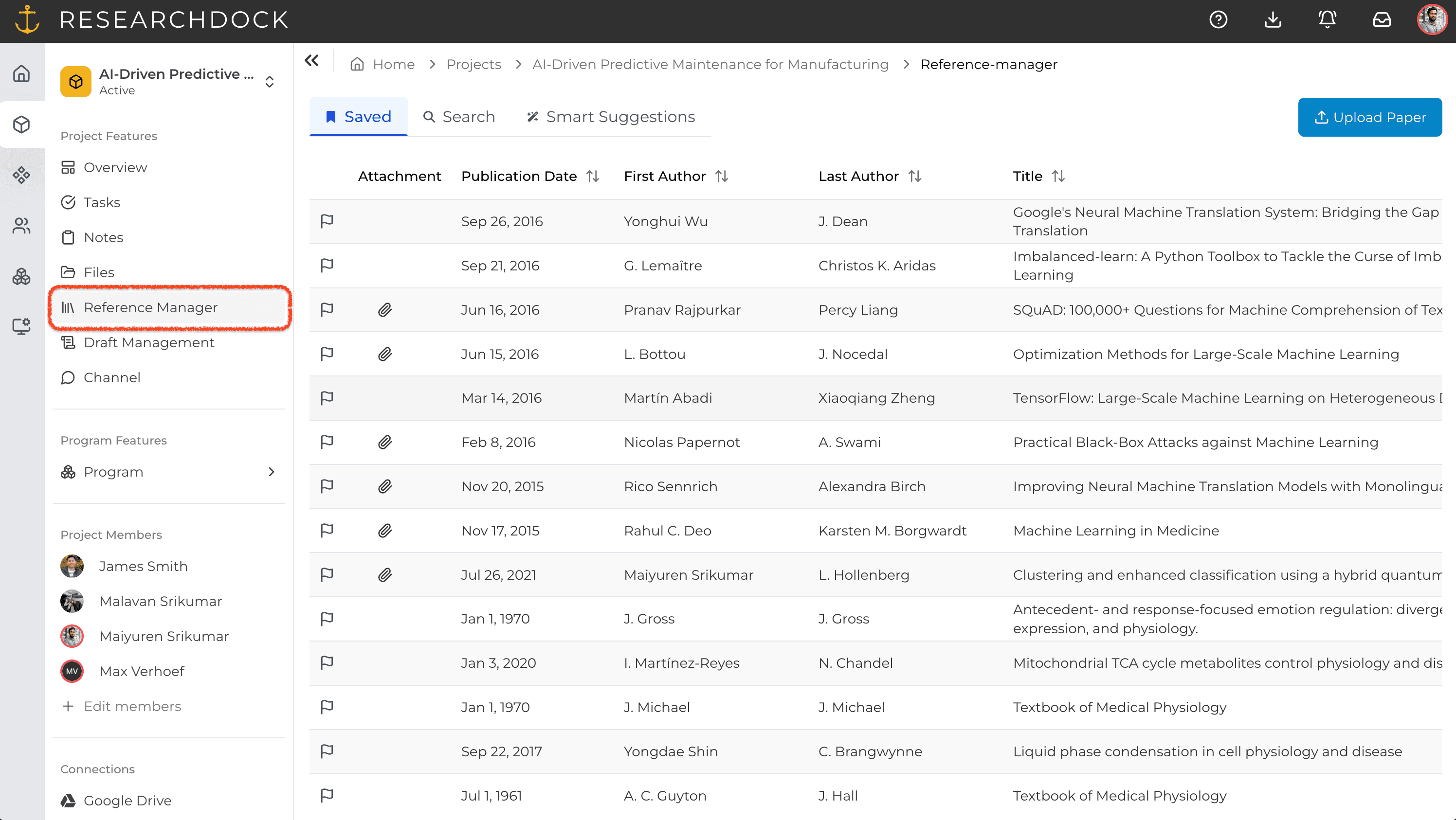
Click the “Reference Manager” tab in the sidebar.
You’ll see:
A list of saved papers
Tabs for Suggestions, Search, and Saved Papers
2. The Three Main Tabs
2.1 Smart Suggestions
The Smart Suggestions tab surfaces papers that are likely relevant to your project. Learn more about this feature here: Discover papers with the Smart Suggestions Feature
Use it to:
Browse recommended papers and Modify Keywords for better suggestions.
Click a paper to view the title, authors, and abstract.
Hit “Save” to add it to the shared library.
2.2 Search
Use Search when you know what you’re looking for (topic, author, or specific paper).
Steps
Go to the Search tab.
Type a keyword, author, or title.
Browse the results and click “Save” on anything you want to keep.
2.3 Saved Papers / Library
The Saved Papers tab is your shared project library.
Here you can:
See all papers in the project
Filter or search within the library
Open a paper to view details, and comments
3. Adding Papers: Save or Upload
3.1 Saving from Search or Suggestions
Any paper you find in Search or Suggestions can be saved in one click.
Steps
From Search or Suggestions, find a paper.
Click “Save”.
It appears in Saved Papers for everyone on the project.
3.2 Uploading a PDF and Matching a Reference
Already have a PDF on your computer? Upload and match it to the correct reference.
Steps
In Saved Papers, click “Upload paper”.
Upload your PDF from your files.
Click "Match Paper" and search for the paper
4. Commenting and Discussing Papers
Instead of sending “what do you think of this?” emails, your team can discuss papers directly inside the project.
To comment on a paper
Go to Saved Papers and open the attached PDF.
Highlight parts of the PDF and make comments to add your thoughts, questions, or summaries.
To reply
Under any comment, click Reply.
Add your response and post.
The thread stays attached to that paper for future reference.
5. Flagging Papers “To Read”
Use flags to build a shared reading list.
Steps
In Saved Papers, find a paper you plan to read later.
Click the flag icon or “Mark as To Read”.
Filter or scan flagged items when preparing for meetings or reading sessions.
6. A Simple Workflow for Your Team
Here’s a lightweight way to use the reference manager in a real project:
- Set up the library
- Everyone adds a few key papers via Search or Upload.
- Discover new work
- Check the Suggestions tab regularly and save promising papers.
- Create a reading list
- Flag important papers “To Read” for the group or for a student.
- Discuss in place
- As people read, they leave comments and reply to each other directly on the paper.
7. One Shared Home for Your Project’s Papers
With ResearchDock’s project-specific reference manager, your literature stops living in scattered folders and starts living where your research actually happens:
One shared library per project
Shared comments, replies, and flags
Suggestions, search, and uploads all in one place
If you’re already using ResearchDock, try this now:
Open a project.
Save a new paper via Search or Suggestions.
Upload a PDF and match it to a reference.
Leave a comment and flag it “To Read”.